
Bitrate is the single biggest factor in how good a video or audio file looks and sounds — more than resolution, more than the codec you pick. If a “1080p” video looks crisp and another looks like a blurry mess despite being the “same quality,” the answer is almost always bitrate.
Bitrate, in Plain English
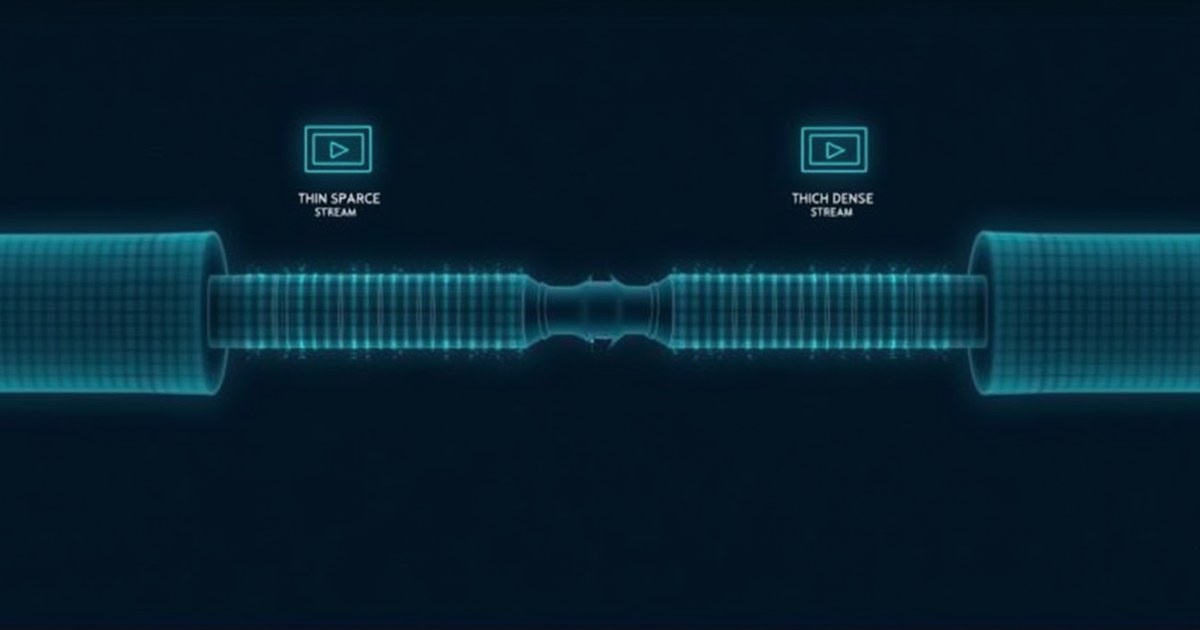
Bitrate is how much data represents each second of video or audio, measured in Kbps or Mbps. Higher bitrate = more detail, less compression artifacting, larger file. Think of a garden hose: resolution is the pipe size (how much could flow), bitrate is how much water is actually flowing. A huge pipe (4K) with a weak trickle (low bitrate) still delivers a bad result.
Why Bitrate Matters More Than Resolution
| Video | Resolution | Bitrate | Real-world quality |
|---|---|---|---|
| A | 4K (3840×2160) | 3,000 Kbps | Blocky, visible artifacts |
| B | Full HD (1920×1080) | 8,000 Kbps | Clean, sharp, no artifacts |
Video B looks better despite lower resolution — it has roughly 2.5× more data per second to work with.
CBR vs VBR (and CRF)
CBR uses the same data rate every second regardless of scene complexity — simple to predict, but wastes data on static scenes and starves complex ones. VBR allocates more data to fast/complex scenes and less to static ones. CRF (used by AllMediaTools’ compressor: Low = CRF 28, Medium = CRF 23, High = CRF 18) targets a consistent quality level and lets bitrate vary to hit it — generally better than picking a fixed bitrate, unless you have a hard file-size target.
Recommended Bitrates
| Resolution | Streaming/web | Archival/high quality |
|---|---|---|
| 480p | 1,000–1,500 Kbps | 2,500 Kbps |
| 720p | 2,500–4,000 Kbps | 6,000 Kbps |
| 1080p | 4,500–8,000 Kbps | 12,000 Kbps |
| 4K | 15,000–25,000 Kbps | 40,000+ Kbps |
H.265 (HEVC) hits equivalent quality at roughly half these numbers — see our H.264 vs H.265 comparison.
| Audio use case | Bitrate |
|---|---|
| Voice/podcast (mono) | 64–96 Kbps |
| Music streaming (standard) | 128–192 Kbps |
| Music (high quality) | 256–320 Kbps |
| Lossless (FLAC, WAV) | N/A — no perceptible ceiling |
How to Check a File’s Bitrate
# ffprobe (command line)
ffprobe -v error -select_streams v:0 -show_entries stream=bit_rate -of default=noprint_wrappers=1 input.mp4
VLC: Tools → Codec Information. Windows: right-click file → Properties → Details tab (not always available for every container).
Setting the Right Bitrate When Compressing
AllMediaTools Video Compressor uses quality presets (Low/Medium/High) rather than a raw bitrate number — simpler and generally better than guessing. Need an exact file size? Work backward: target size (MB) × 8000 ÷ duration (seconds) ≈ target bitrate (Kbps). See compressing video without losing quality for real-world settings.
Frequently Asked Questions
Is higher bitrate always better?
Up to a point. Beyond what’s needed to eliminate visible artifacts for a given resolution, extra bitrate just adds file size with no perceptible gain.
What bitrate does YouTube recommend?
Roughly 8,000 Kbps for 1080p and 35,000–45,000 Kbps for 4K. YouTube re-encodes everything anyway, so uploading far above these wastes bandwidth without improving delivered quality.
Why do two videos at the same bitrate look different?
Content complexity matters — a static talking-head clip needs far less bitrate than fast action at the same resolution. This is why VBR/CRF encoding generally beats a fixed CBR bitrate.
What’s the difference between bitrate and file size?
Bitrate is data-per-second; file size is bitrate × duration. A high-bitrate 10-second clip can be smaller than a low-bitrate 10-minute video.