
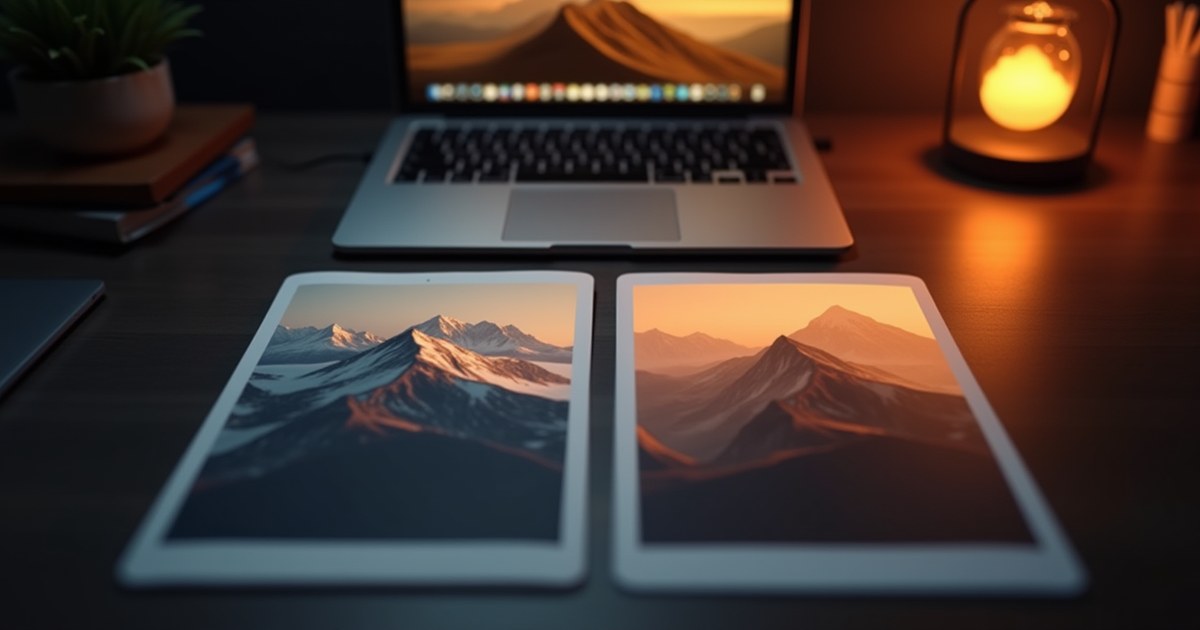
Most AI image generators start from nothing but a text prompt — you describe a scene, and the model invents it from scratch. That’s not what most people actually want most of the time. Usually you already have a photo — a product shot, a portrait, an old family picture, a landscape you took — and you want to change one thing about it: the background, the lighting, the color palette, an object in the frame. That’s a genuinely different task, and it needs a genuinely different kind of tool.
Two of AllMediaTools’ AI image tools actually do this: you upload your existing photo as a reference image, describe the change you want in plain language, and the model edits from that reference instead of generating something unrelated. Here’s how it works, what it’s actually good for, and where it falls short.
Text-to-Image vs. Reference-Image Editing: Why the Distinction Matters
A standard text-to-image generation run starts from random noise and is shaped entirely by your prompt’s words — there’s no existing photo involved, and no guarantee the result resembles anything specific. If you tried to “edit” a photo this way by just describing it plus a change, you’d get a brand-new image that vaguely matches your description, not your actual photo with one thing changed.
Reference-image editing is different: you provide the model an actual image to start from, and it generates a new version conditioned on that image plus your text instruction. The output is meant to still be recognizably related to your original — same subject, same general composition — with the specific change you asked for applied. If you want the deeper mechanics of how text-to-image generation works in the first place, see What Is Text-to-Image AI and How Does It Actually Work? — this article picks up specifically where that leaves off.
The Two Tools That Actually Support This
This is the part worth being precise about, because it’s a real, live capability and not a theoretical one — the backend’s image-generation serializer has an input_image field, and it’s genuinely wired up to two tools on the site:
FLUX Kontext (AllMediaTools AI Image Generator)
On AllMediaTools AI Image Generator, once you’re signed in, there’s a FLUX Kontext editing mode: upload a reference image, describe the edit you want, and it generates a new version based on that reference rather than starting from a blank prompt. Kontext mode specifically requires a reference image to run — it’s built around editing an existing photo, not generating from scratch.
Nano Banana (Gemini 2.5 Flash Image)
Nano Banana AI Image Generator supports conversational image editing: upload a reference image and describe the change in natural language — “make the sky sunset orange,” “put this person in a red jacket instead,” “turn this into a pencil sketch” — and it edits from that reference.
Both tools solve the same underlying problem in slightly different ways; which one gives you a better result can vary by the specific edit, so it’s worth trying both on a stubborn image before assuming one is simply better.
What Kinds of Edits Actually Work Well
Based on how reference-image editing is designed to work, it’s best suited to changes you can describe in a sentence or two, applied to the whole image rather than one precisely bounded area:
- Style transfer — turning a regular photo into a painting, sketch, or a different art style while keeping the subject recognizable
- Background swaps — replacing what’s behind the subject (a studio backdrop instead of a cluttered room, a beach instead of an office)
- Color and lighting changes — shifting a daytime photo to golden-hour lighting, or changing an overall color palette
- Clothing or object changes — swapping an outfit, a prop, or another describable element
- Colorizing old black-and-white photos — adding plausible color to a historical or archival image
- Mood or season changes — turning a summer scene into winter, or a clear sky into a stormy one
Step by Step: Editing a Photo with a Reference Image
- Pick a clear source photo. A sharp, well-lit original gives the model more to work with than a blurry or heavily compressed one.
- Upload it as the reference image on either AllMediaTools AI Image Generator (FLUX Kontext mode) or Nano Banana.
- Describe only the change, not the whole scene. “Change the jacket to red” works better than re-describing the entire photo — you’re editing, not regenerating from scratch. See how to write AI image prompts that actually work for prompt-writing fundamentals that carry over here.
- Generate, then compare. Check whether the parts of the photo you didn’t want changed actually stayed intact — this is the step where reference-image editing’s real limits show up (see below).
- Regenerate if needed. Like all AI image generation, results vary run to run. If the first attempt shifted something you wanted kept, try again with a more specific prompt, or try the other tool.
What This Can’t Do — Be Honest About the Limits
Reference-image editing is real and useful, but it’s not a replacement for a proper photo editor, and it isn’t the same thing as professional inpainting tools:
- No precise masking or brush-based selection. You can’t paint a mask over exactly the region you want changed the way you would in Photoshop’s inpainting tools. The model edits based on your text description and the whole reference image — parts you didn’t mention can shift slightly too, especially with a more dramatic prompt
- No LoRA training or identity-locking. This isn’t a way to train the model on a specific person’s face for perfect, repeatable likeness across many images — that’s a different, more involved technique (a trained LoRA model) that neither tool offers
- Not pixel-perfect or guaranteed-consistent. Expect close, usable results rather than a surgically precise single-region edit every time. Fine, small-detail edits (changing just the color of one small object without touching anything else) are the least reliable category — broader changes (style, background, overall lighting) tend to work more predictably
- Iteration is often necessary. Treat the first result as a draft, not a final answer, particularly for anything more specific than a broad style or background change
If you need surgical, pixel-level control over exactly which region changes, a traditional photo editor is still the right tool. Reference-image AI editing is best thought of as “describe the change and get a strong first draft,” not “make this one exact edit with nothing else touched.”
FLUX Kontext vs. Nano Banana: Which One Should You Use?
Neither is categorically better — they’re different underlying models with different editing behavior, and which one nails a specific edit can vary by image:
- FLUX Kontext is part of AllMediaTools’ own FLUX-based image generator, available once signed in, and tends to work well for style and lighting changes
- Nano Banana is built on Google’s Gemini 2.5 Flash Image model and is framed as conversational — you can describe changes in more natural, back-and-forth language, which can make iterating on an edit feel more direct
If one doesn’t give you the result you want, trying the same reference image and prompt on the other is a reasonable next step before concluding the edit isn’t achievable this way.
What to Do Next
- Pick a photo you actually want to edit and decide on one specific, describable change to start with.
- Try it first on AllMediaTools AI Image Generator using FLUX Kontext mode.
- If the result isn’t quite right, try the same reference image and prompt on Nano Banana instead.
- For prompt-writing fundamentals that apply to both tools, see how to write AI image prompts that actually work.
- If your goal is actually keeping the same character consistent across several new images rather than editing one existing photo, that’s a related but different use case — see our guide to keeping an AI character consistent across images.
Frequently Asked Questions
Can I really upload my own photo and edit it with AI on AllMediaTools?
Yes — this is a genuinely live capability, not a theoretical one. FLUX Kontext mode on AllMediaTools AI Image Generator requires a reference image to run, and Nano Banana supports uploading a reference image and describing the edit conversationally.
Is this the same as Photoshop’s inpainting or a masking tool?
No. Neither tool lets you paint a precise mask over one exact region — edits are guided by your text description applied to the whole reference image, so nearby areas can shift slightly too. For pixel-precise, single-region edits, a traditional photo editor with masking is still the better tool.
Can I use this to make an AI clone of a specific person’s face for repeated use?
Not reliably. That kind of identity-locking typically requires training a dedicated model (a LoRA) on that person’s face — neither FLUX Kontext nor Nano Banana on AllMediaTools does that. Reference-image editing gets you a close, plausible edit of a given photo, not a trained, repeatable identity.
Which tool gives better editing results, FLUX Kontext or Nano Banana?
It depends on the specific edit — neither is consistently better across every case. Style and lighting changes tend to work well on both; if one doesn’t produce what you want, trying the same photo and prompt on the other tool is a reasonable next step.
Do I need an account to use FLUX Kontext or Nano Banana?
FLUX Kontext mode on the AI Image Generator is available once you’re signed in. Check each tool’s page directly for its current access requirements, since free-tier limits can change.
Will the edited image look exactly like my original except for the one change I asked for?
Usually close, but not guaranteed pixel-for-pixel. Broader changes (background, style, overall lighting) tend to preserve the rest of the image more reliably than very small, specific edits. Treat the first result as a strong draft and regenerate if something you wanted kept has shifted.